Wallbox Double — operating instructions
Article contents
This guide describes the original configuration without TouchPoint. For the touchscreen terminal, use the TouchPoint guide. Check parameters and the interface against the supplied configuration's documentation.
1. Introduction
Thank you for purchasing AgeVolt Wallbox Double. This document provides the information needed to use the charging station for your electric vehicles (EVs).
1.1 General information
- Keep the user manual throughout the product's lifetime and make it available to charging station users.
- Some station images in this manual are illustrative; the actual product may differ from the one you use.
- Images and instructions refer to a typical device design.
- Your station may differ in design and supported functions.
- Follow this manual's instructions. Failure to do so may create hazards or disable station safety features. Also observe safety precautions and accident-prevention measures appropriate to the situation.
- Charging points (EVSEs) are exclusively for charging electric vehicles. Connecting other devices, such as power tools, is prohibited.
- Follow the operating procedures and safety instructions in this manual.
- Failure to follow safety instructions can endanger life, cause injury or damage equipment!
- The manufacturer accepts no liability for damage or injuries caused by failure to follow the user manual!
1.2 Safety instructions and warning symbols
- Use the station only in perfect condition, with no visible damage. If in doubt, contact AgeVolt technical support.
- Only authorized, qualified professionals should repair or maintain the station. Unauthorized repair or modification voids the manufacturer's warranty.
- Unauthorized modifications or conversions are prohibited.
- Do not remove labels, including safety symbols, warnings, power ratings, identification labels or cable labels.
- Protect the charging station from impacts.
- The station has no built-in switch. Always follow local rules and regulations for operating and using electrical equipment.
- Use the station only within its specified operating parameters and ambient temperatures from −30°C to +50°C.
- Do not use the station in adverse weather that could affect the vehicle or station. Do not open station covers in rain.
- Warning symbols relating to potential hazards appear throughout the user manual.
The warning symbols have the following meanings:
 Danger indicates an immediately hazardous situation that could cause death or serious injury if recommended measures are not followed.
 Caution indicates that failure to follow recommended precautions may damage equipment.
1.3 Warranty
- AgeVolt permits only routine station maintenance: cleaning and inspection by an electrical inspection technician.
- Any other manipulation of the charging station voids its warranty.
- Do not remove manufacturer seals. Removal invalidates warranty entitlement.
2. Charging station description
2.1 Socket version
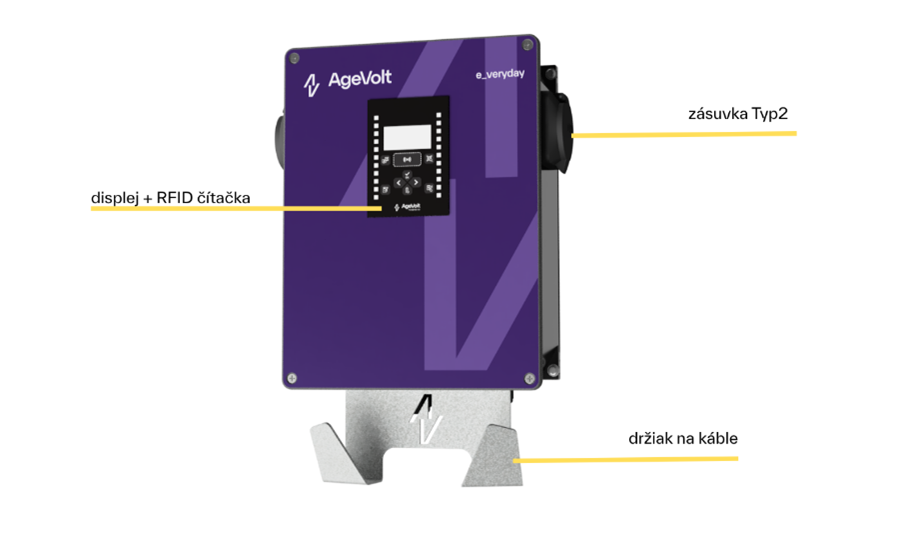
2.2 Cable version
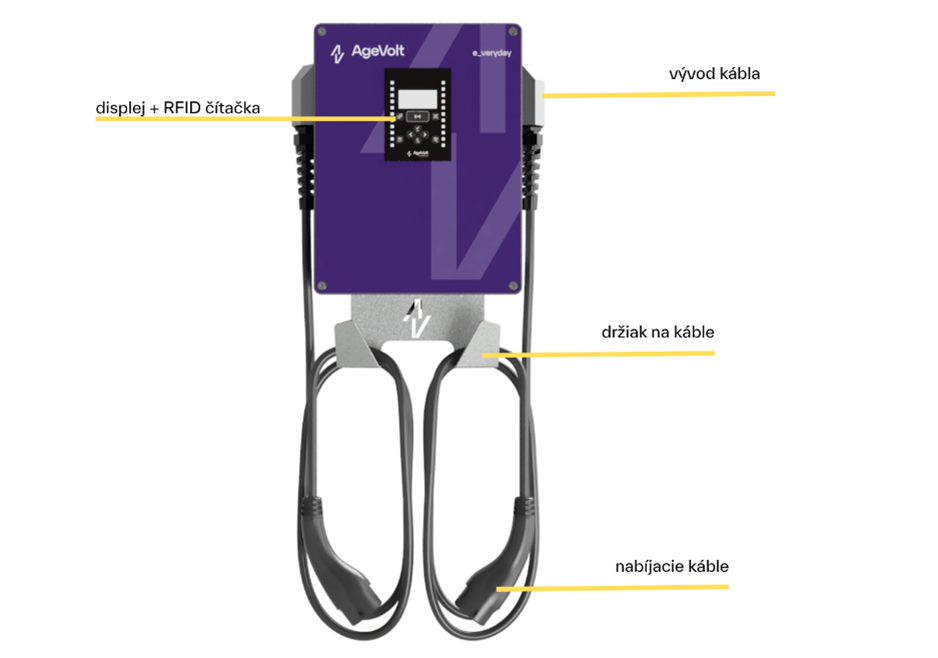
- Wallbox Double has two charging points (EVSE)
- Wallbox Double is available with TYPE 2 sockets or TYPE 2 charging cables.
- Wallbox Double may be supplied without a display and RFID reader; their presence depends on configuration.
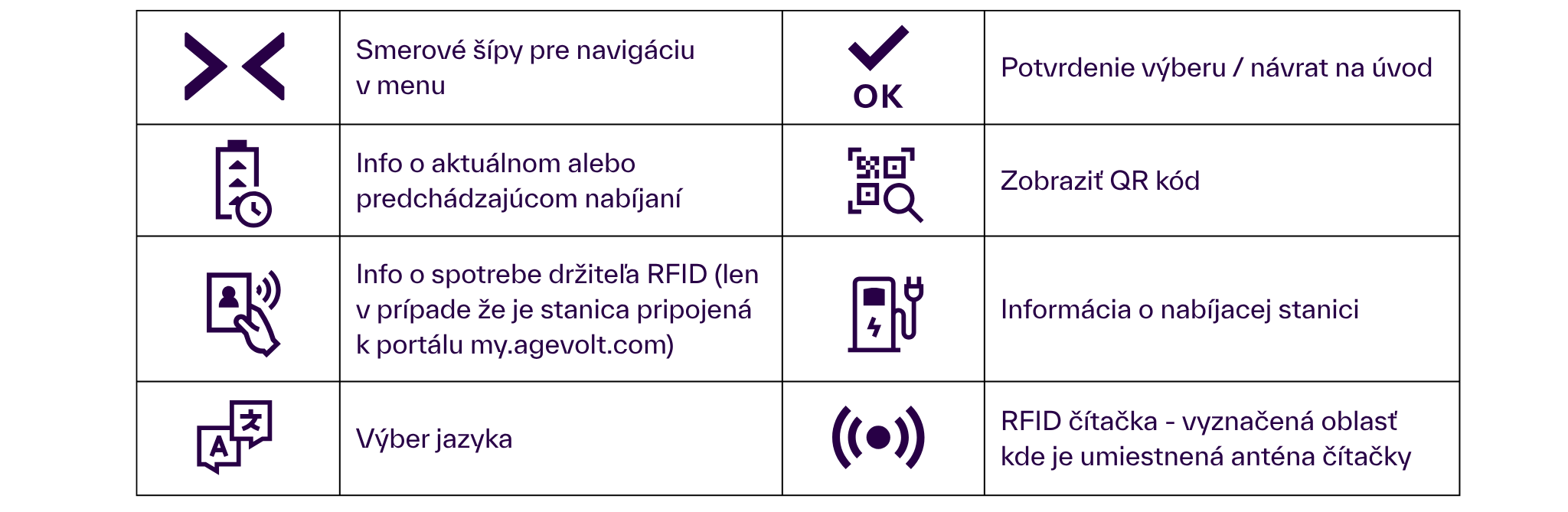
2.3 Display and RFID reader
The display shows EVSE status before and during charging and instructs users to perform actions. Charging power, duration and other information are available. An RFID reader at its top authorizes users with cards, key fobs, wristbands and similar devices.
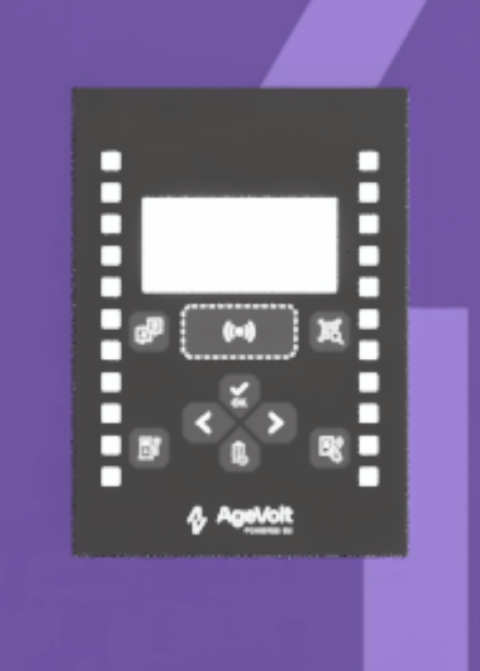
2.3.1 Display button descriptions
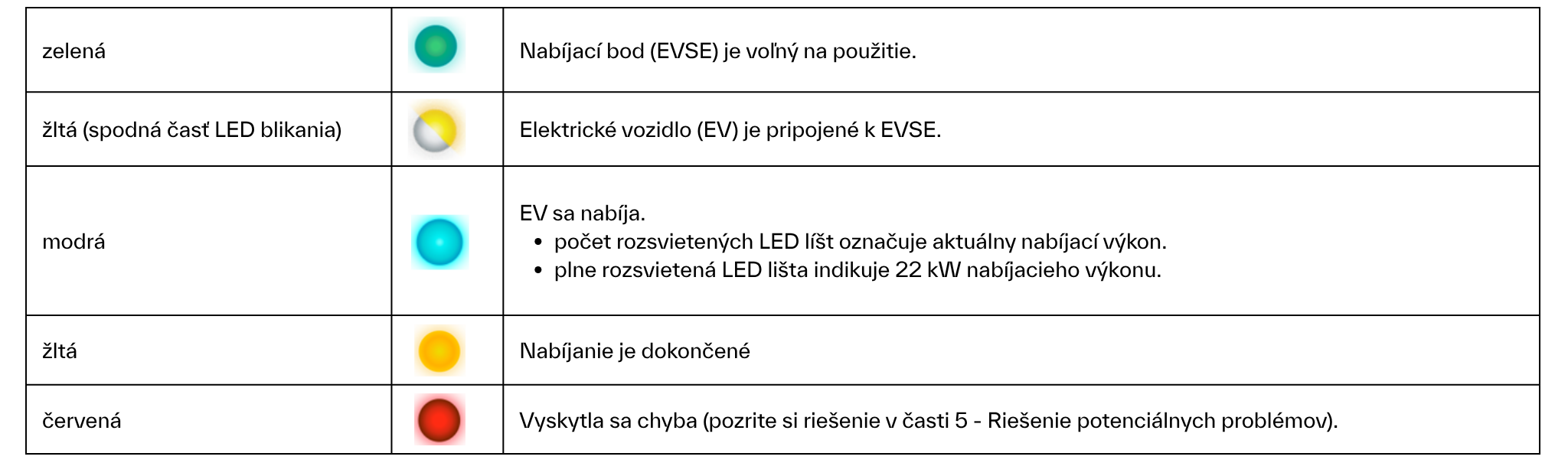
2.4 LED indicator strips
The station has two LED strips, each representing the charging point on the same side. If the station has only one EVSE, both strips show its status.
3. Signing in to the SmartSystem web interface
3.1 Remote SmartSystem access through the Tecomat portal
Remote access to SmartSystem requires an account in the Tecomat portal. For help creating it, contact technical support.
https://route.tecomat.com — remote charging station/SmartSystem access.
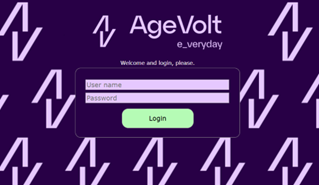
3.2 Signing in to SmartSystem
The SmartSystem webserver provides charging system settings and management, charging control, report creation and other functions.
Sign-in credentials:
Use credentials according to the handover documentation and your permissions. If unavailable, contact the AgeVolt helpdesk.
The login can be changed on System → edit under System setup
3.3 Signing in to MyAgeVolt
MyAgeVolt provides station management, sharing, paid charging, eRoaming access, reports and other features. Registration and sign-in are available at https://my.agevolt.com.
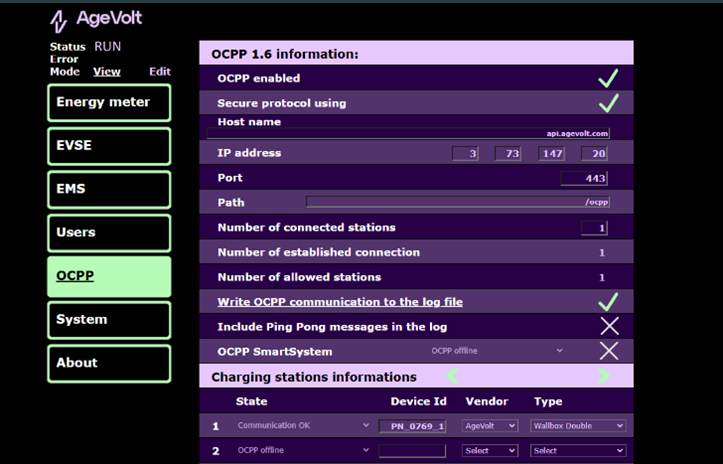
4. Setting the WebSocket connection to the OCPP server
4.1 Connection settings
Configure OCPP server connection parameters on OCPP → Edit.
- OCPP enabled: enables connection to the OCPP server
- Secure protocol using: enables a secure WebSocket connection
- Host name: OCPP server hostname or IP address
- IP address: do not fill in; this is the resolved Host name or a copy of the IP address entered there
- Port: server connection port, usually 443 for wss and 80 for ws
- Path: path
Service providers generally supply the OCPP server address in the following form, corresponding to the station settings above:
WsType://HostName:Port/Path/
WsType determines the Secure protocol using setting and can be
- wss for a secured WebSocket connection
- ws for an unsecured WebSocket connection
5. Charging authorization options
The authorization type depends on settings made during installation and configuration.
5.1 No authorization: unrestricted access
No authorization is required. Charging starts automatically after connecting the vehicle to the EVSE.
5.2 Local RFID authorization
Authorization requires an RFID device such as a key fob or card.
Local user management is available through the station's SmartSystem webserver; see section 3.2.
5.3 Online authorization
Online authorization is available only when connected to a charging management backend. AgeVolt stations default to MyAgeVolt; this can be changed according to section 4.1.
Register the station in MyAgeVolt to use all online authorization methods. Authorization may also be available with another backend; consult that provider about its functions.
Available online authorization methods include
- presenting an RFID card permitted by the backend
- starting charging through an application, where the station can be found
- by station name
- by scanning a QR code
- by reading the NFC tag on the cable gland side or socket cover
- starting charging from the backend interface
6. Electric vehicle charging process
6.1 Starting charging
- Connect the cable to the EV and station.
- Authorize if required by the settings
- Charging starts.
6.2 Ending charging
Unlock the vehicle and disconnect the cable from the vehicle and station.
Charging can also be paused using one of these options:
- Presenting the RFID card
- Ending charging through the application
- Ending charging from the backend
7. Resolving possible problems
7.1. Possible problems and solutions
|
Error |
Possible causes |
Solution |
|
EV connected to the station | ||
|
Charging did not start
|
The charging step sequence was not followed. |
Disconnect the cable from the car and station, wait 10 seconds, then start charging again. |
|
RFID reader | ||
|
The RFID device, such as a card or key fob, is not recognized. |
The RFID device is unsupported. |
Use a supported RFID device. |
|
|
The RFID reader is not working correctly. |
1. Restart the station by switching power off and on. 2. Contact technical support. |
|
Display | ||
|
Shows “HALT” |
A software update is in progress |
Wait for the update to finish. |
|
The display is not communicating with the control system. |
1. Restart the station by switching power off and on. 2. Contact technical support. | |
|
Does not respond when an RFID card is presented. |
The card is not supported. |
Replace the card with a supported type. |
|
|
The RFID reader is not working correctly.
|
1. Restart the station by switching power off and on. 2. Contact technical support. |
|
Shows an unreadable group of characters. |
The display does not work.
|
Restart the station by switching power off and on. |
7.1 Restarting the charging station
Switching the station's circuit breaker off and on restarts it.
If the control unit is in the building distribution board, switch its upstream circuit breaker off and on.
8. Maintenance, repairs and care
8.1 Maintenance
The station generally requires minimal maintenance. AgeVolt recommends regular inspections according to local requirements by an authorized, qualified professional, particularly for public stations. Owners should perform regular visual checks and maintain good technical condition to prevent damage, faults or accidents.
Unauthorized station repairs are prohibited. Repairs should be performed only by a qualified electrician using original AgeVolt-approved spare parts.
If required, clean the station only with a dry cloth. Disconnect power while cleaning to avoid electric shock. Do not use a pressure washer or aggressive cleaning agents.
Text © AgeVolt Slovakia, s. r. o. 2025
Image © AgeVolt Slovakia, s. r. o. 2025
This manual is protected by copyright law. Use without the author's consent is prohibited. Copying, including partial copying, requires their permission.