MyAgeVolt for Recovery Plan projects
Article contents
This guide is intended for existing recipients of Recovery Plan project funding. It brings together the original project procedures and their illustrations. The menus described apply to the project interface shown, and do not automatically apply to every current version of the platform. Always check the terms of public access, roaming and settlement against your contract.
For general current guidance on using MyAgeVolt, open the current platform help.
Signing in and access
Sign in at my.agevolt.com. If you cannot see stations you should have access to, send support the email address used for registration and the station identifiers. For an existing account and Space, access is granted by its administrator or support according to your permissions.
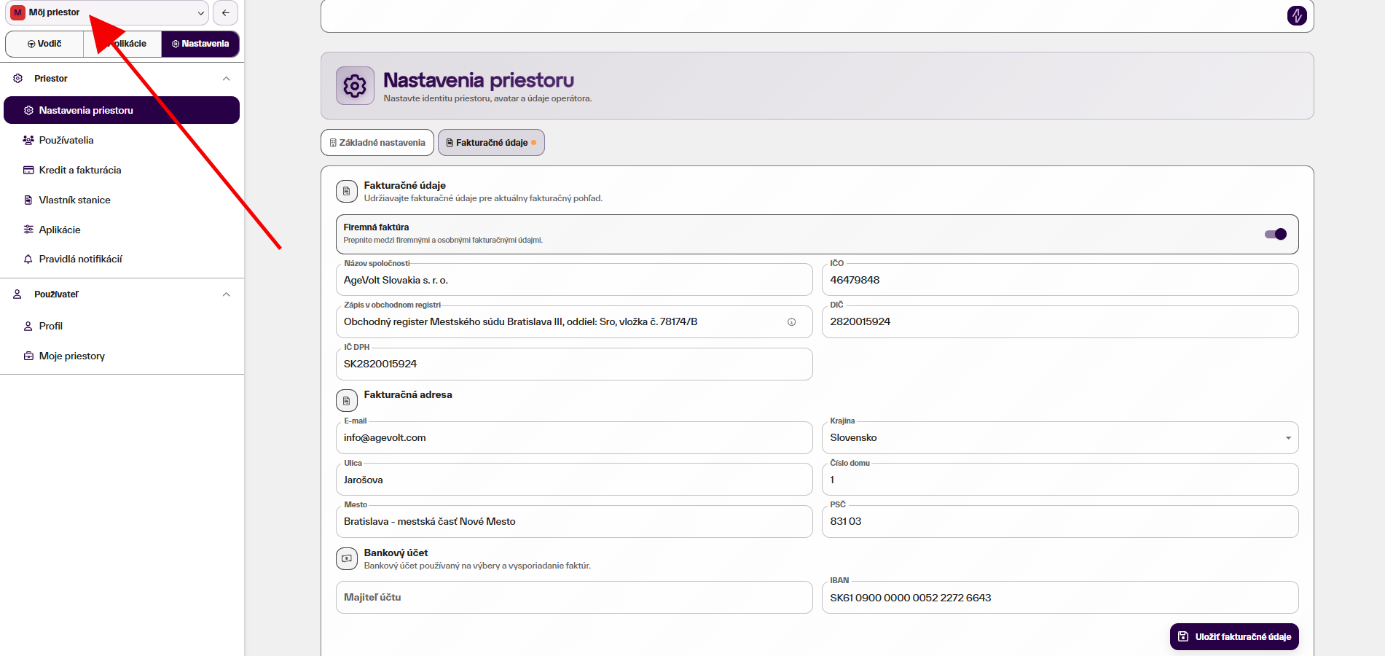
Select the correct Space
A Space groups a customer’s stations, vehicles, RFID cards and settings. If you have access to several Spaces, always check the current selection before making changes.
 Enlarge image
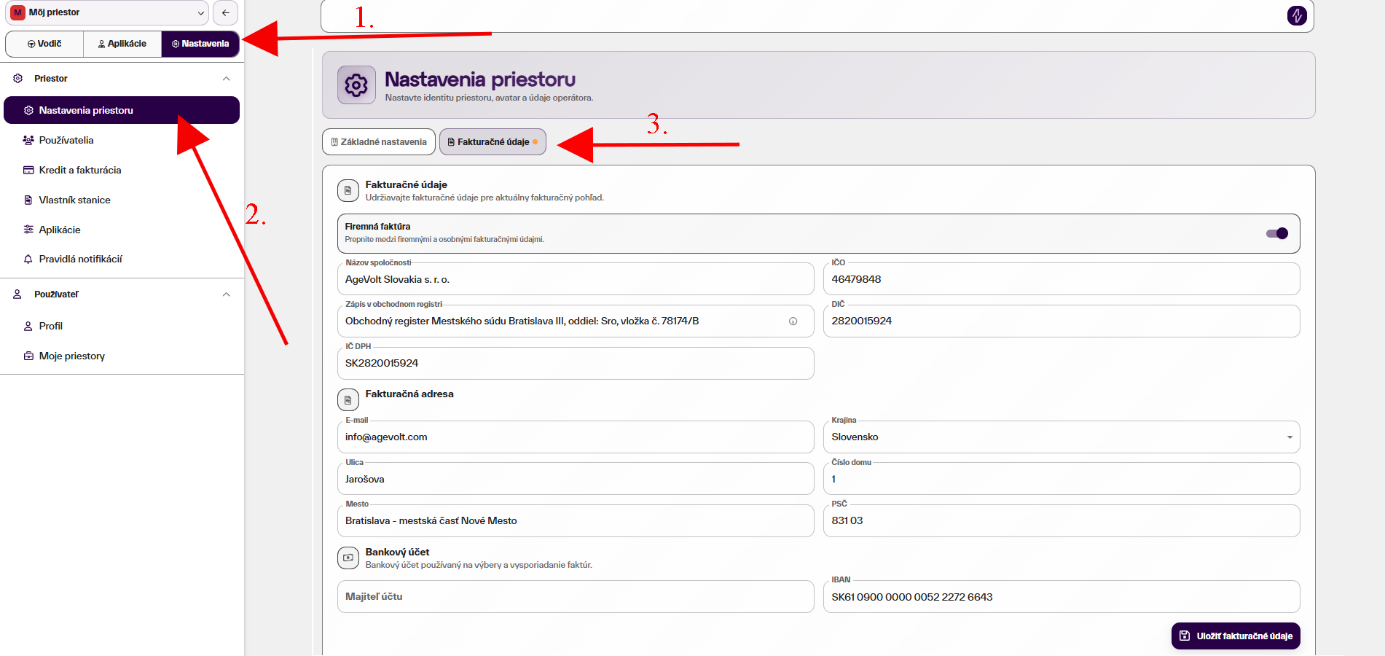
Billing details
In Space settings, check the company name, identification details, address and billing email. If revenue payouts have been agreed, also check the account holder and IBAN. The details must belong to the contracted customer.
 Enlarge image
Access and prices
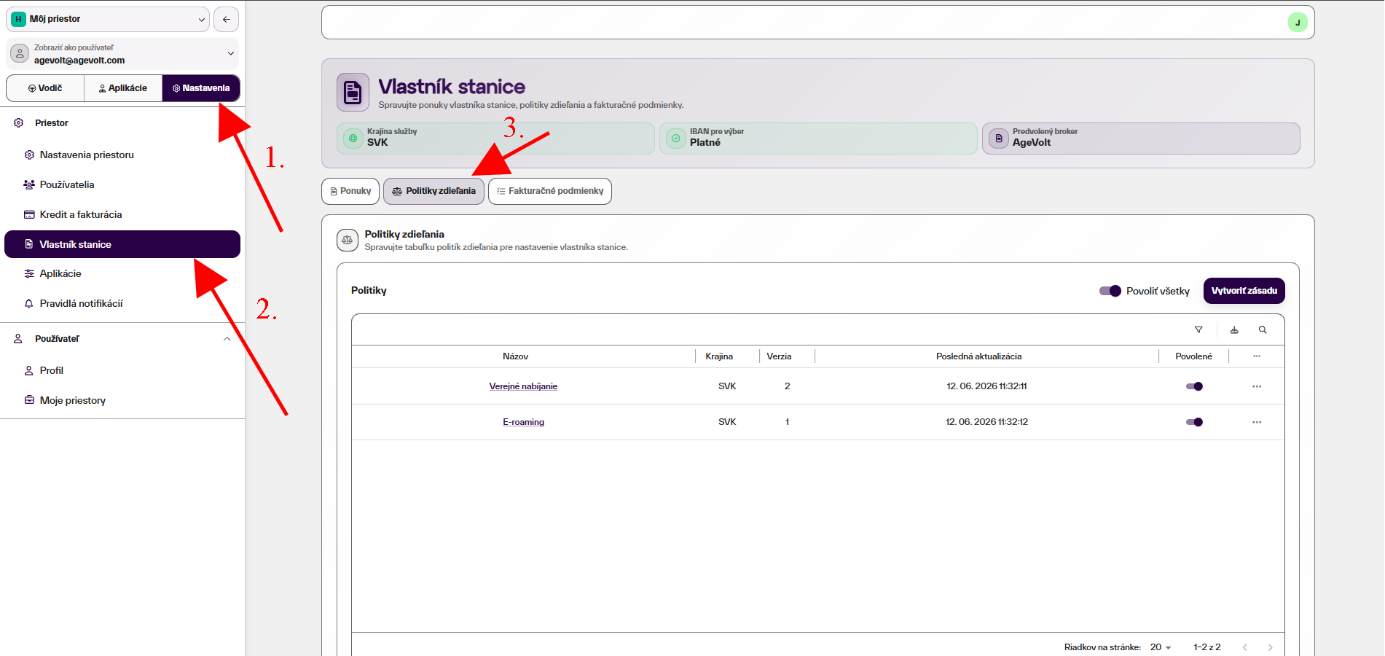
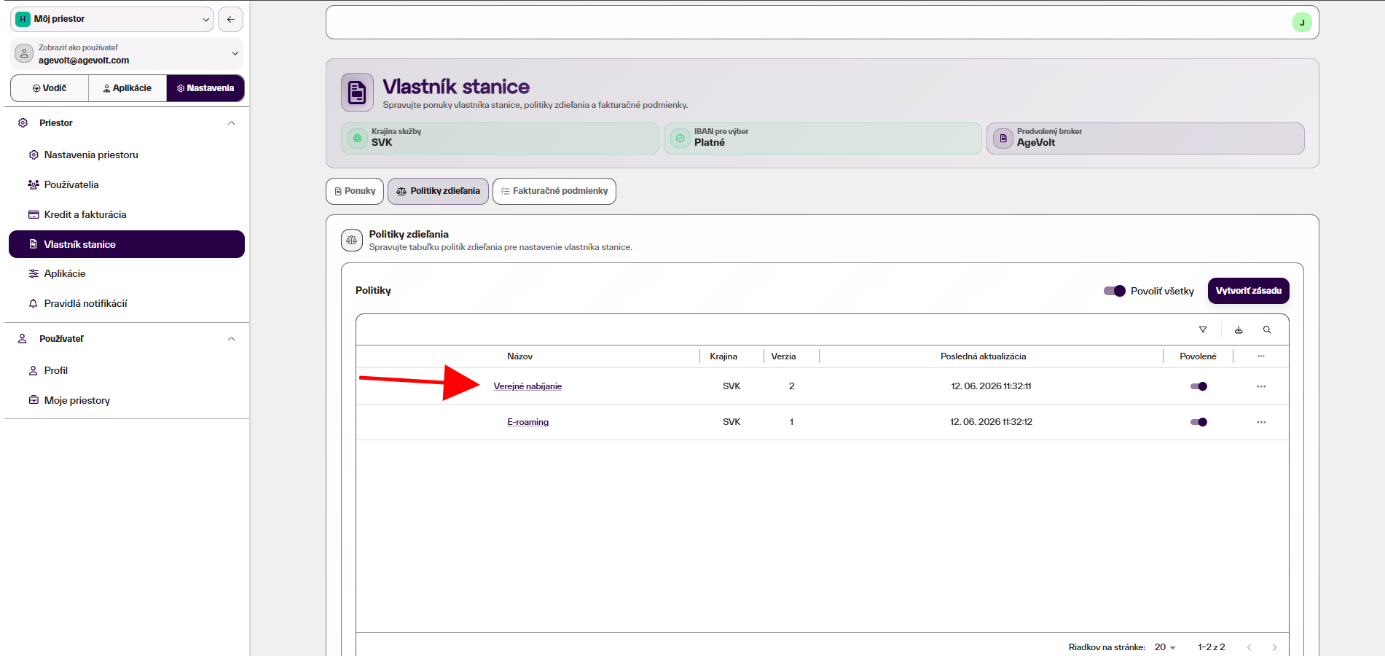
Under Station owner → Sharing policies, you define who can charge and on what terms. Public charging and E-roaming are separate policies. Use the ones you need and that match your contract.
 Enlarge image
 Enlarge image
Energy price and time-based fees
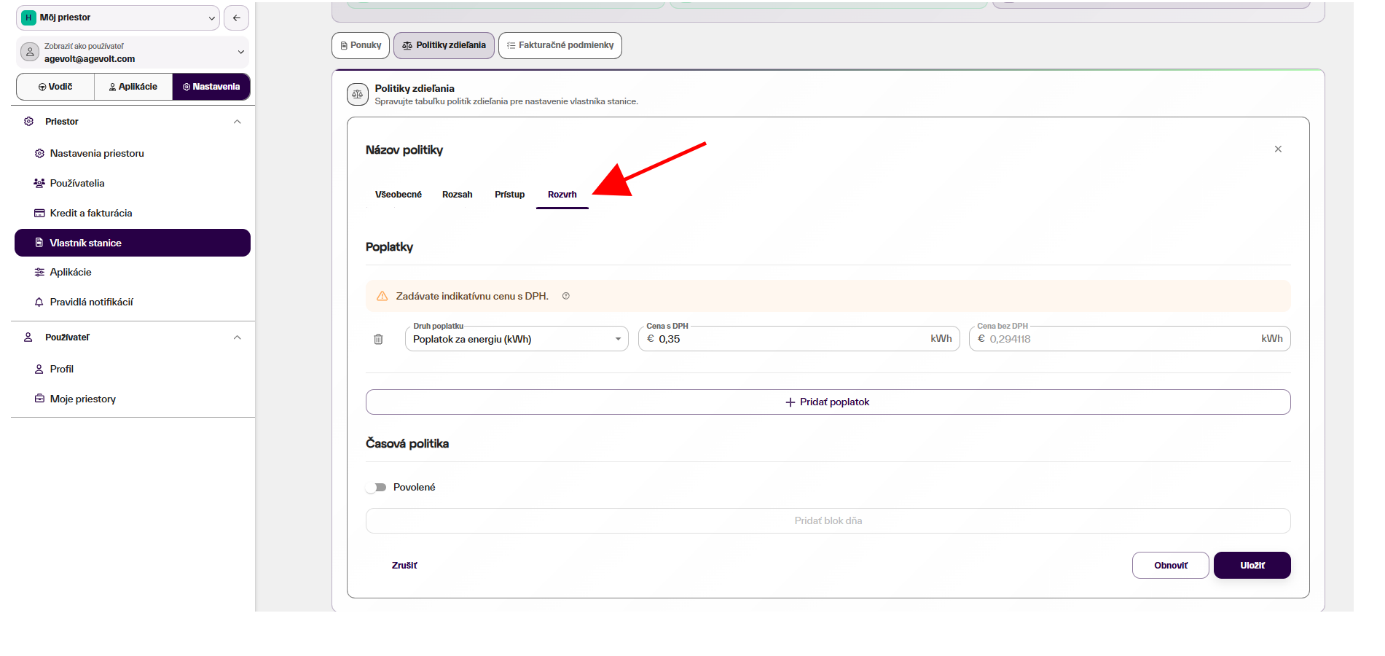
Open Schedule in the policy. The Energy fee determines the price per kWh. In the interface shown, the price is entered including VAT. Before saving, check your costs and any price limit in your contract. This guide does not set a universal charging price.
 Enlarge image
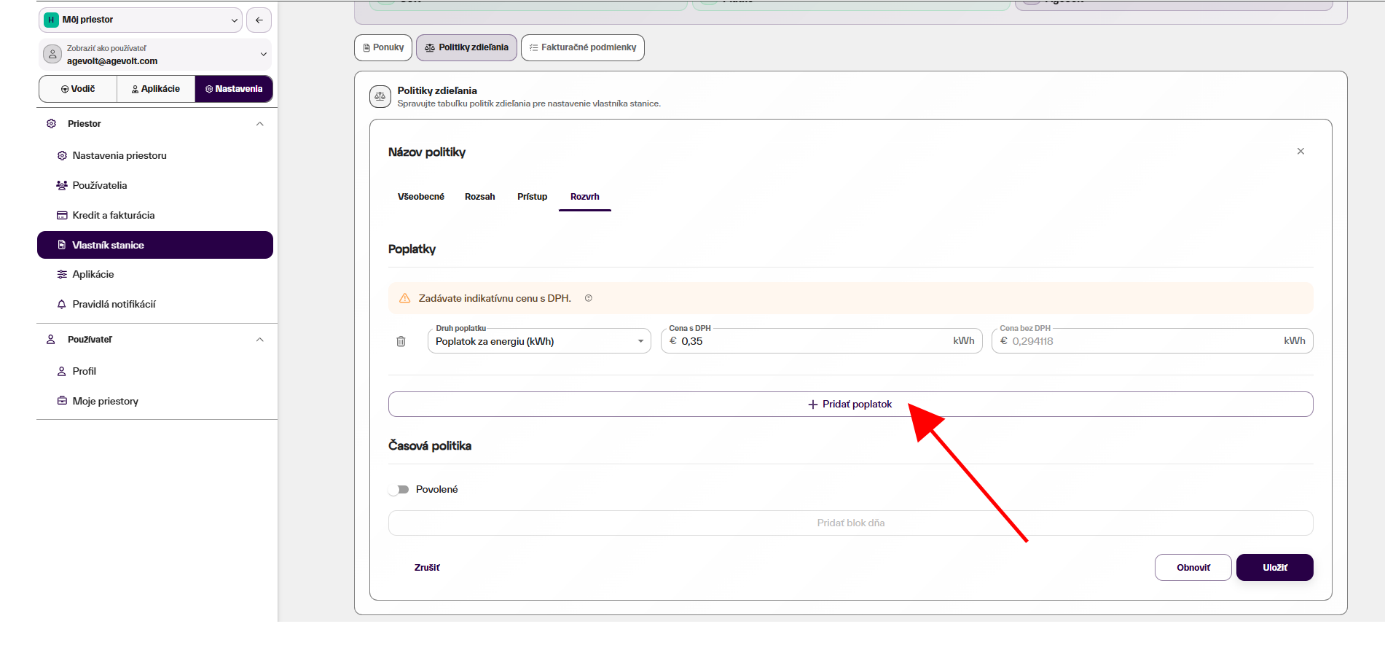
Parking fee
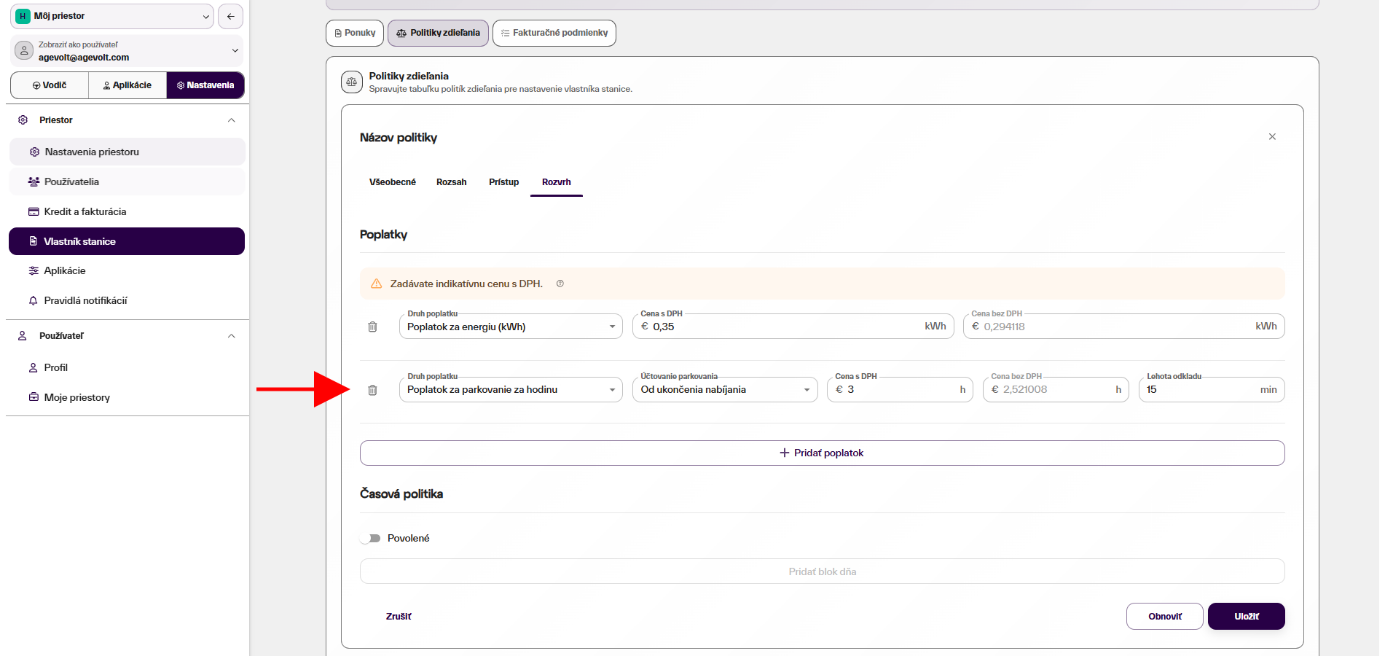
A time-based fee can help free the space for other drivers. Check whether it is calculated from the start of charging or only after charging ends, and how long the free period lasts. The image shows an example setting, not a mandatory rate.
 Enlarge image
 Enlarge image
Vehicles and RFID cards
In the interface shown, vehicles and RFID cards are in the Charging app. First create or select a vehicle, then assign the card used for charging to it. Charging transactions will then be recorded against the correct car.
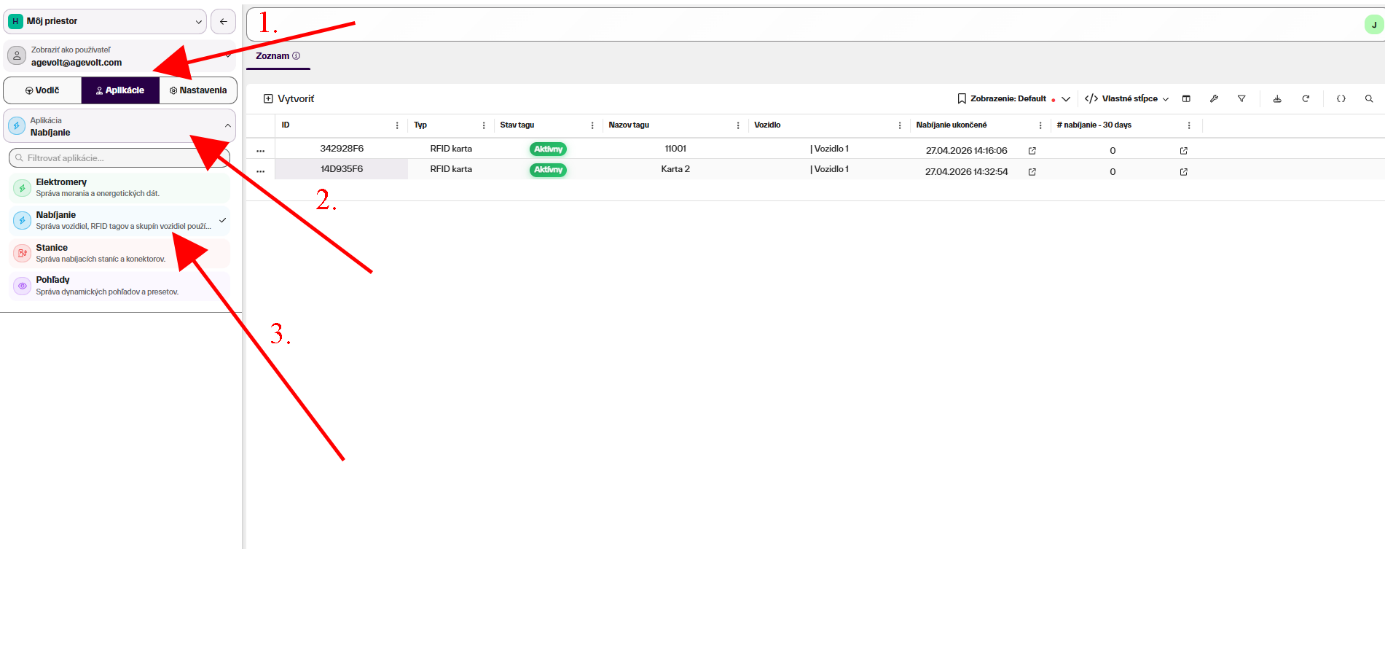 Enlarge image
RFID card for both the car and driver
Assign the card used for charging to the vehicle. If you also use it to identify the driver through an in-car reader, the same physical card can also be linked to the driver. For a shared car, it is practical to keep the car identifier on its keys and the personal card with the driver.
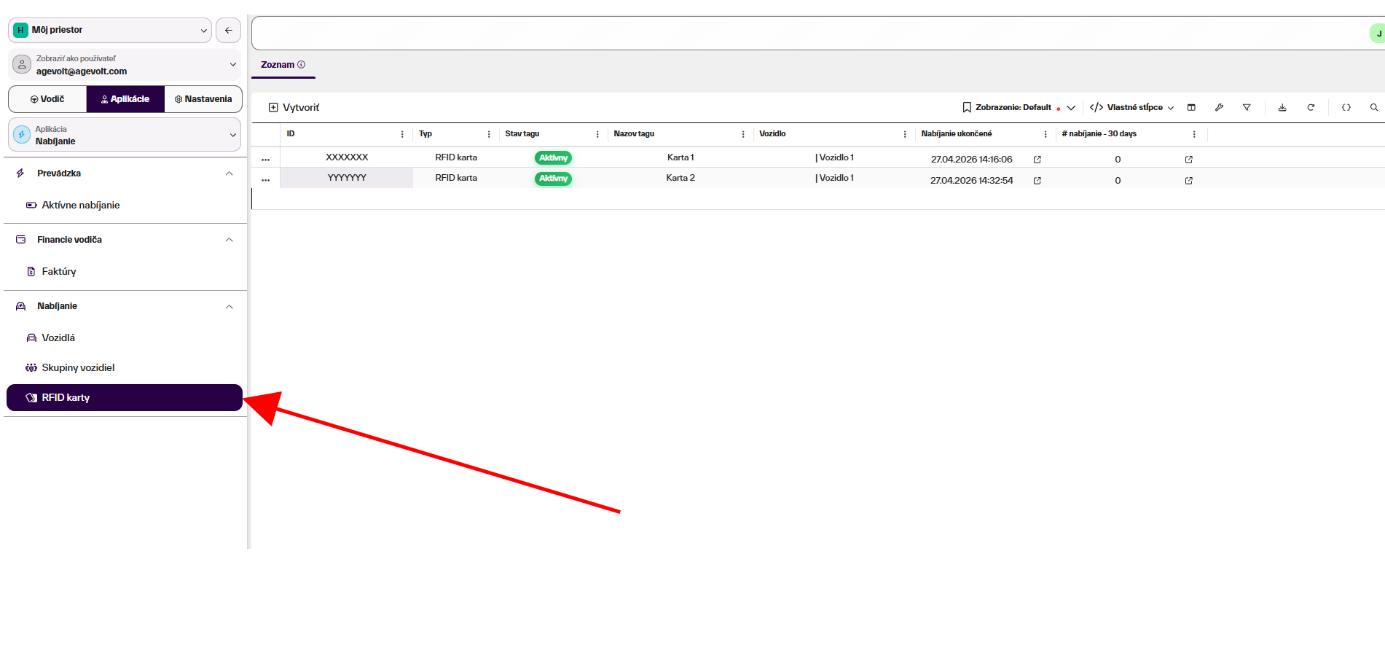 Enlarge image
Vehicles and groups
Name the vehicle so it is easy to distinguish in reports, for example by its name or registration number. A vehicle can have several cards.
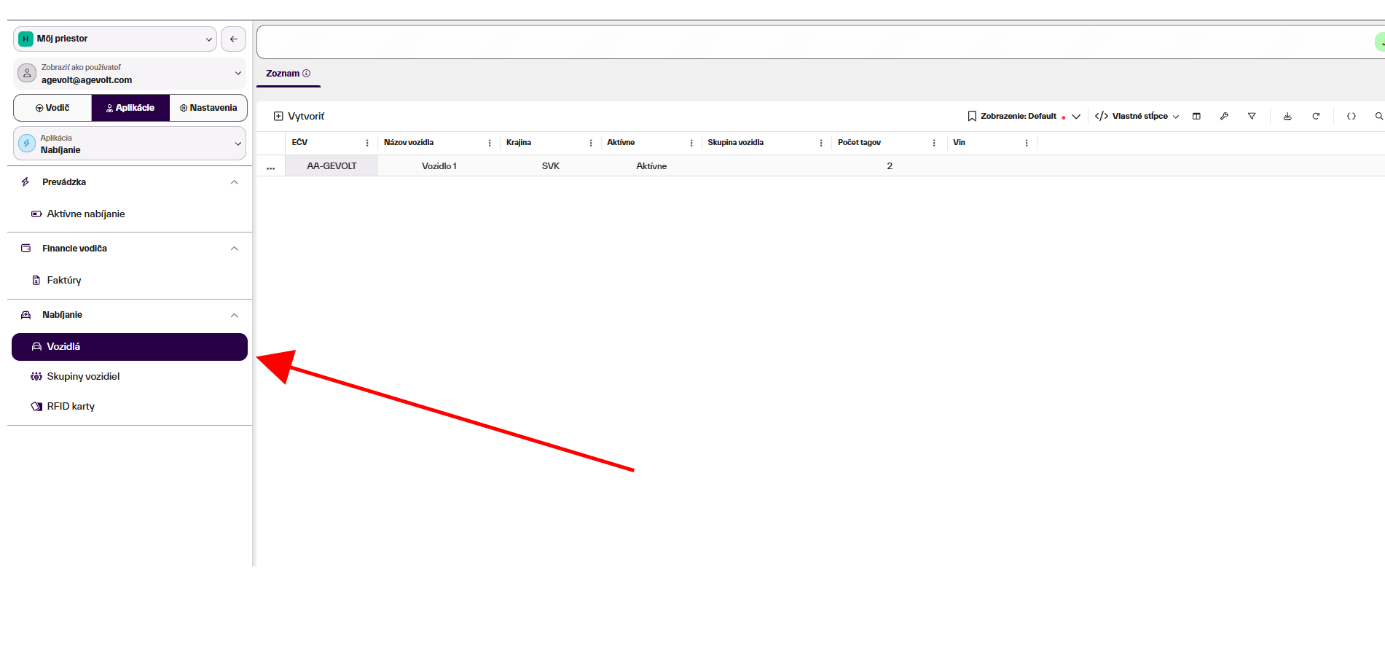 Enlarge image
Vehicle groups
For a larger fleet, groups help organize cars by operation, department or purpose. You do not need them for a small number of vehicles.
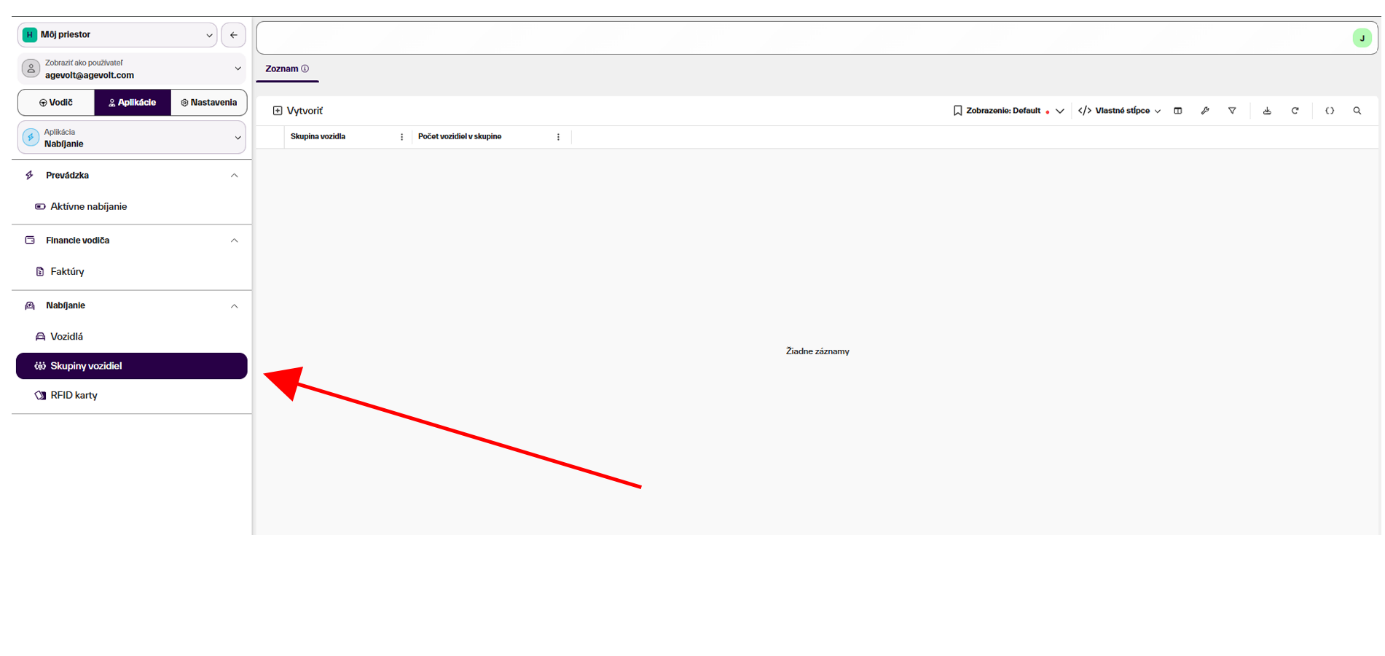 Enlarge image
Settlement and self-billing
Configure settlement according to your contract. Self-billing is an optional agreed arrangement, not a requirement for every customer. Automatic withdrawal is a separate option. Before enabling it, check the billing details and IBAN.
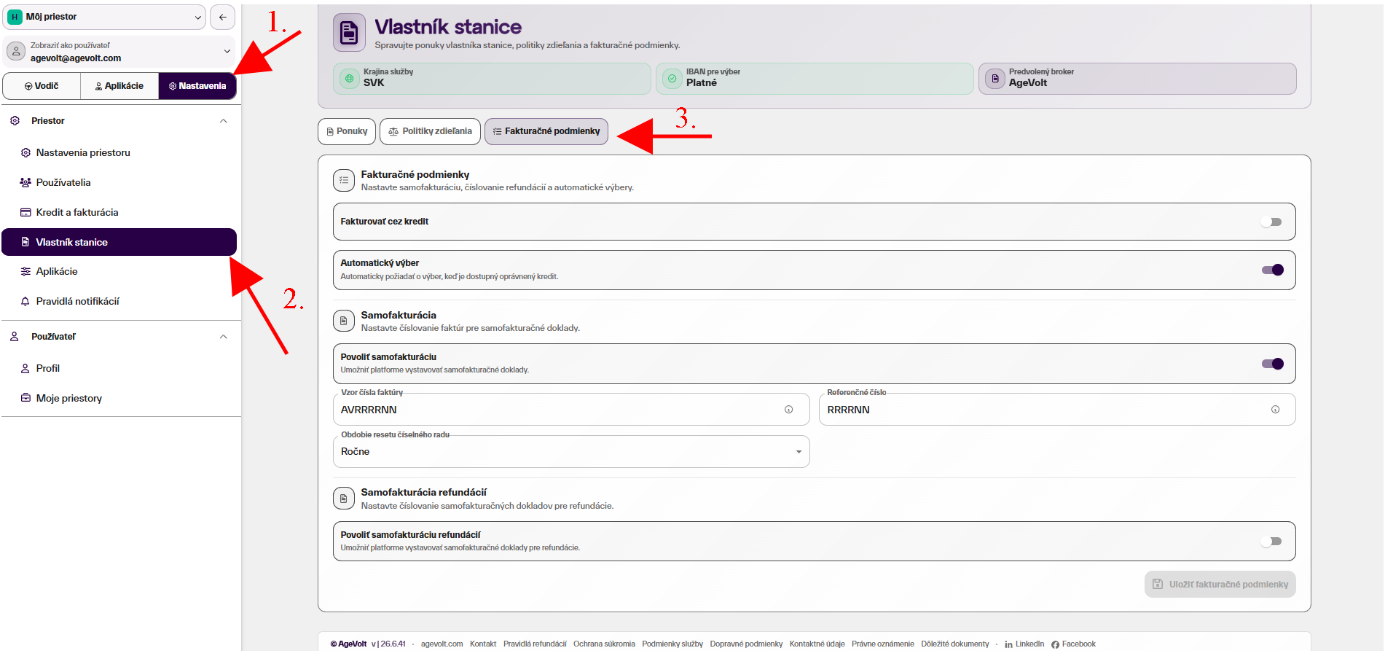 Enlarge image
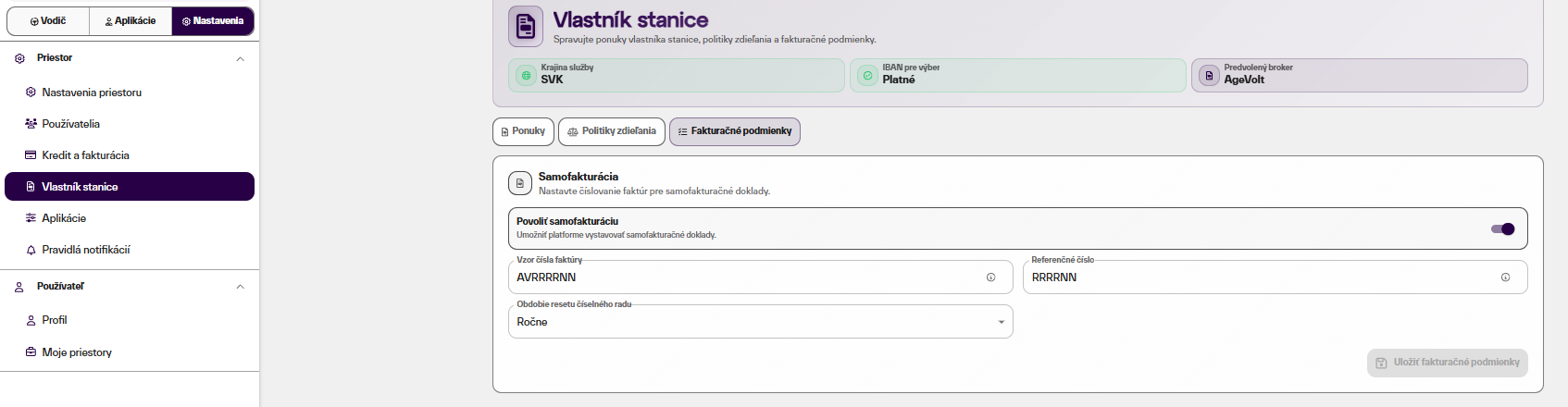 Enlarge image
Terms of the specific project
For stations funded through a specific call, check the requirements for public access, roaming, prices and the operating period in your contract and its annexes. Project rates, limits and presets are not a general MyAgeVolt price list. This guide no longer presents historical automatic-publication deadlines as future tasks.
Checklist for existing funding recipients
Help with settings
If you need help going through specific settings, contact helpdesk. When reporting a problem, state the Space, station and time. For basic procedures, use the current platform help.